Deployed App Pages can be added as widgets to dashboards.
Enable dashboard widget
In the Page Settings, enable save to dashboard. Optionally, set the refresh interval for the widget.
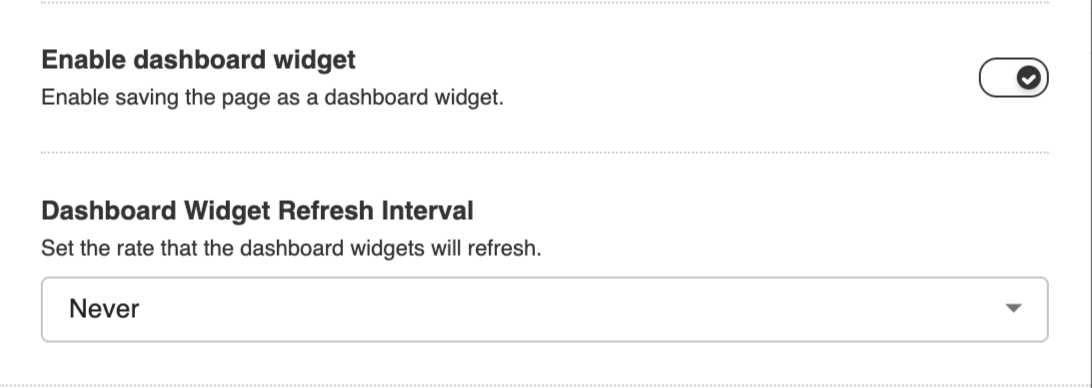
This will enable Save To Dashboard and Add New Widget for this App Page.
.png)
.png)
Widget Layout Customization with widget_layout_props
By default, every panel returned on the page will be displayed in the dashboard widget. The page developer can change this default behavior by adding widget_layout_props to the Page Logic response. The widget_layout_props has the same format as grid_layout_props but will only apply to the dashboard widget. For example, the page below has two panels by default, but with widget_layout_props, the widget will only show the plotly-chart.
If only one panels exist in the widget, the panel will auto-resize when the widget changes size. Otherwise, the layout in widget_layout_props will be used.
grid_layout_props = {
    "layout":[
    {
        "w": 8,
        "h": 12,
        "x": 0,
        "y": 0,
        "i": "plotly-chart",
        "static": "true"
    },
    {
        "w": 4,
        "h": 12,
        "x": 8,
        "y": 0,
        "i": "markdown-panel",
        "static": "true"
    }
]}

widget_layout_props = {
      "layout":[
    {
        "w": 8,
        "h": 12,
        "x": 0,
        "y": 0,
        "i": "plotly-chart",
        "static": "true"
    }
]}

# === Structure the output response ===

response = {
    "grid_layout_props": grid_layout_props,
    "widget_layout_props": widget_layout_props,
    "panels": [chart_panel, markdown_panel]
}