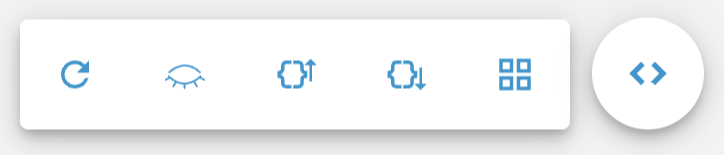
In preview mode, the developer toolbar contains developer experience tools. The toolbar appears after selecting the Update button.
Refresh App
The refresh app button reloads the app and reruns the query in preview mode. Changes in the sidebar and page logic will apply after selecting the button.
Typical Workflow
Open preview mode in a new tab and select update.
Make changes in the pickers or in page logic in BUILD.
Return to the preview mode tab and select refresh app.
See the changes and repeat.
Request Body
The Request Body section displays input parameters selected from the pickers. These parameters are accessible as a JSON object in the page logic, helping you determine how to retrieve picker selections.
Example
machines = pickers["asset"]["value"]["machine_names"]The above will return us
["F1_Paper_Mill_Finishing_and_Shipping"]based on the example.
.png)
.png)
Response Body
The Response Body section displays the output from the page logic. Use this to debug if the output data and format are correct.
.png)
.png)
Grid Layout
In preview mode, you can freely adjust the panel size and positions. In conjunction, use the Grid Layout button to see the current state of the grid layout and copy this back to the page logic output to make it permanent.
.png)
.png)
Use the Live Mode toggle to switch between the production layout of the page and the preview layout of the page.
.png)