Dashboard widgets can be set up to selectively refresh at predefined intervals, in order to enhance dashboard performance. This feature can be controlled for each widget within the dashboard, and enables the selected widgets to run in the background.
To access this functionality, you will need to go to the overflow menu for the Widget and select Loading Options.
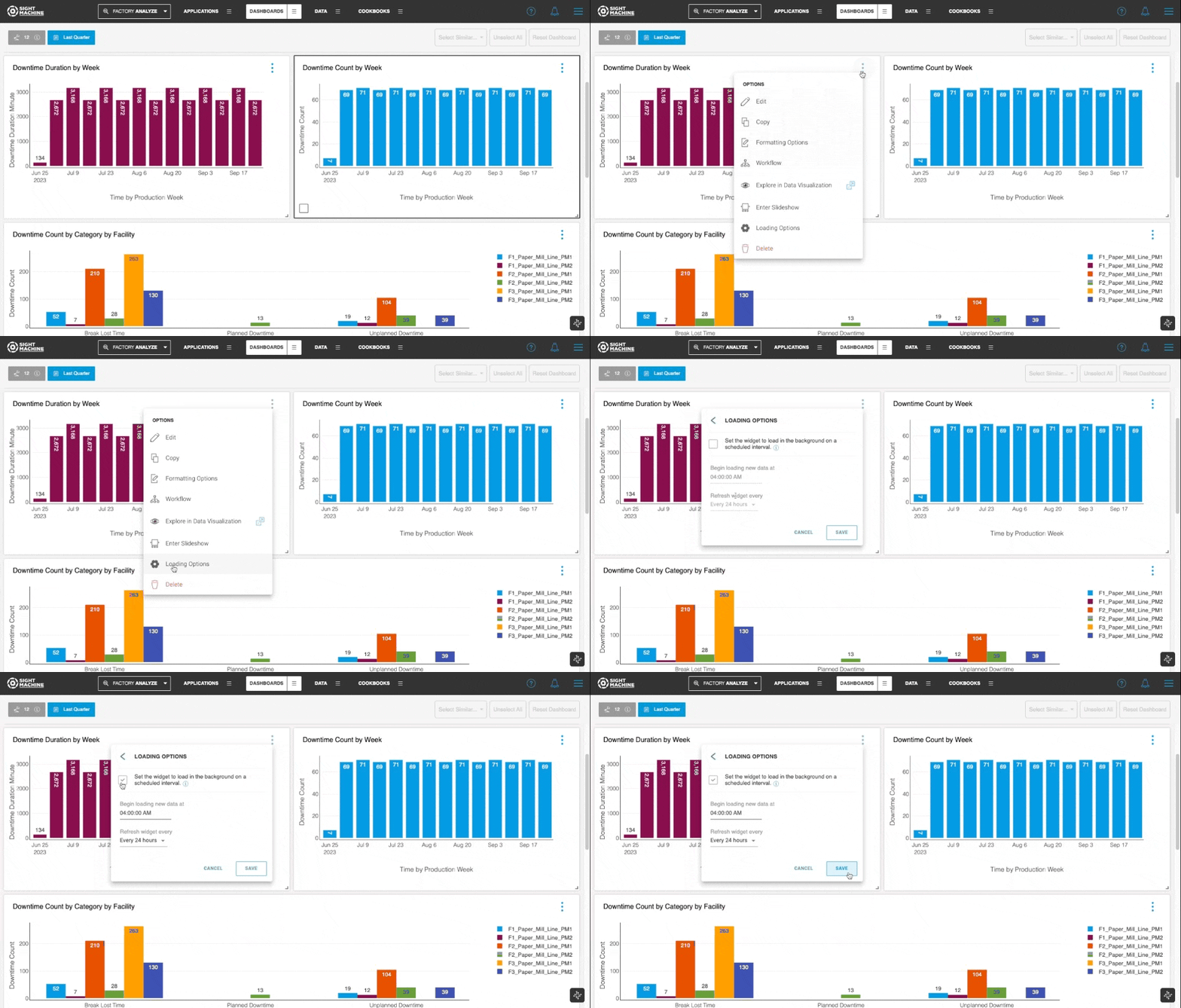
You must then select the option to “Set the widget to load in the background…”. Once this option is selected, you have the ability to determine the refresh rate based on predefined intervals. The available options for the refresh rate are: Every 12 Hours, or Every 24 Hours.
You can also set up Background Loading options for the widget when you first save it to a dashboard.
You can configure the "Begin loading new data" option to initiate data retrieval at a specific time. This time can be specified using a 24-hour clock format, such as "08:00:00AM.", and is in the local time zone.
Default Refresh for Widgets
Widget Type | Refresh Rate |
|---|---|
Datavis (> 7 days) | 5 minutes |
Datavis (> 1 day) | 2 minutes |
Datavis (<1 day) | 30 seconds |
TSC | 20 minutes |
SPC | 90 seconds |
KPI | 90 seconds |
Event Timeline | 5 minutes |
Single Value | 5 minutes |
Other Widgets | 15 minutes |
Manual Refresh for Background Loading Widgets
In certain instances, errors, data delays, or other issues may prevent the scheduled updating of a dashboard, and result in substantial delays in visualizing the data. You can now manually rerun the query for background loading widgets using the “Run Now” button, or by clicking on the Refresh icon for new widgets.
.gif "chrome-capture-2024-4-1 (4).gif")